Install the Zalify Pixel on Shopify
Get the Zalify Pixel live on your Shopify store — with automatic, zero-config consent handling.
On Shopify you don't paste the Pixel snippet by hand. The Zalify app ships the Pixel as a theme app embed — you turn it on in your theme, and it also wires into Shopify's consent system for you.
Before you begin
- The Zalify app installed on your store. If you haven't done that yet, start with Getting Started with Zalify.
- Store admin access so you can edit your theme.
Enable the Pixel app embed
Open your theme editor
In Shopify admin, go to Online Store → Themes, then click Customize on your live theme.
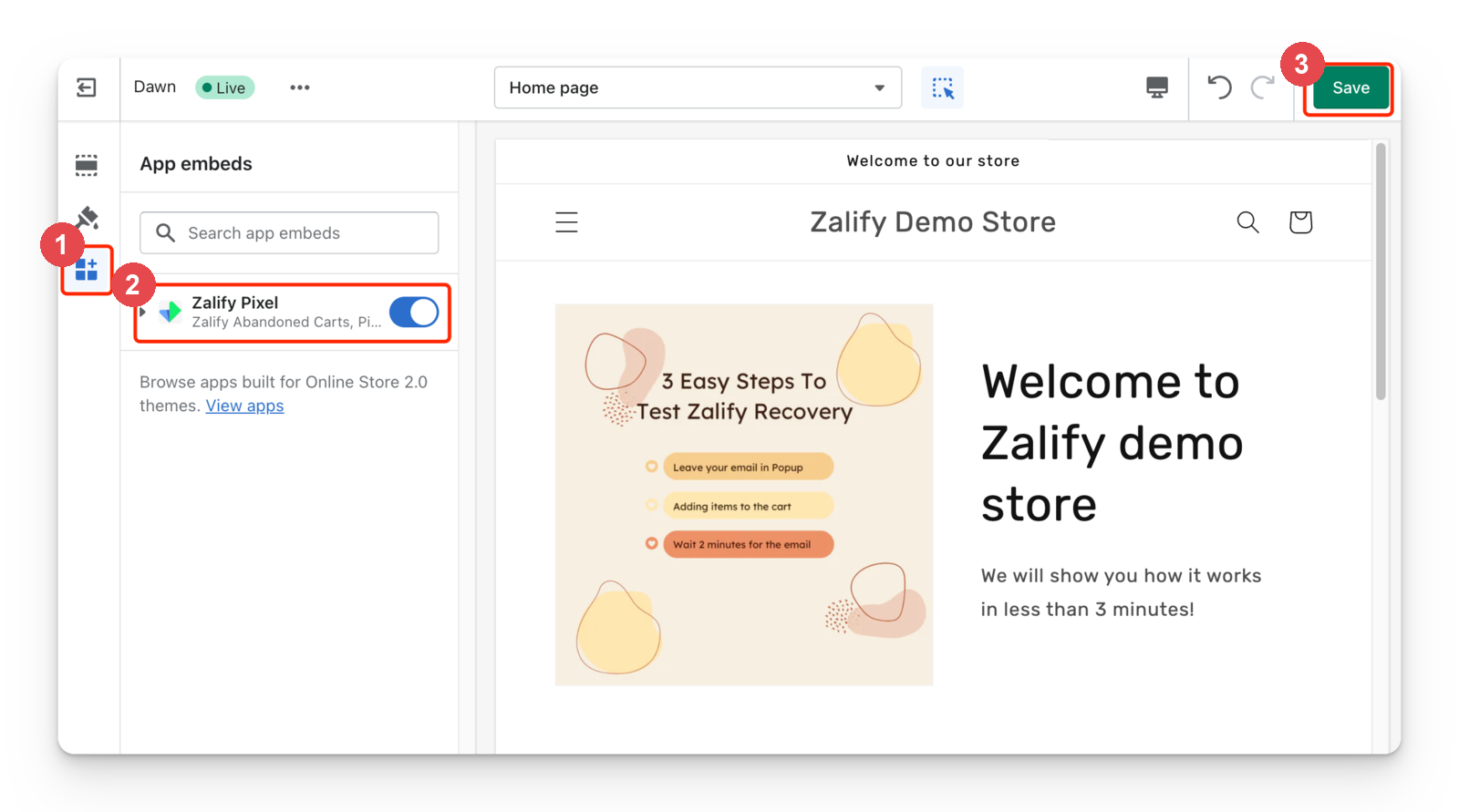
Open App embeds
In the theme editor sidebar, open the App embeds panel (the puzzle-piece icon).
Turn on the Zalify embed
Find Zalify Pixel and toggle it on. This loads the Pixel on every page of your storefront with your workspace already configured.
Save
Click Save in the top-right corner. The Pixel is now live across your store.
Consent is handled automatically
If your store exposes Shopify's customer-privacy API (window.Shopify.customerPrivacy.analyticsProcessingAllowed), the Pixel wires into it with zero configuration. It:
- reads the visitor's consent status at boot,
- subscribes to Shopify's
visitorConsentCollectedevents, and - ignores any manual
consentStorageKeyparameters.
Nothing to configure
On Shopify you don't need the manual consent options that other sites use. As long as your store's privacy/consent settings are on, the Pixel respects them out of the box. See Configure consent (GDPR/CCPA) if you want the details.
Verify it's working
Open your storefront with Preview Mode on and watch events fire — see Test your setup with Preview Mode.
Next steps
- Test your setup with Preview Mode — confirm events are firing
- Send conversions to Meta, Google, TikTok & more — turn on ad forwarding
- Create your first popup — start engaging visitors