Set Up TikTok Pixel & Events API
Create a web Pixel in TikTok Events Manager, copy Pixel ID and Access Token, then enter them in Zalify.
Zalify supports TikTok Pixel (browser) together with the Events API (server-side) for standard e-commerce events. Create a Website Pixel in TikTok Events Manager, copy your Pixel ID and Events API access token, then paste them into Zalify.
Open Events Manager
Sign in and open:
Start the flow to create a new website Pixel (or connect a website data source). If you already have a Pixel, open its settings to find Pixel ID and Events API options.
Early wizard steps (reference screenshots)
Labels may be localized; choose the equivalent options in your language.
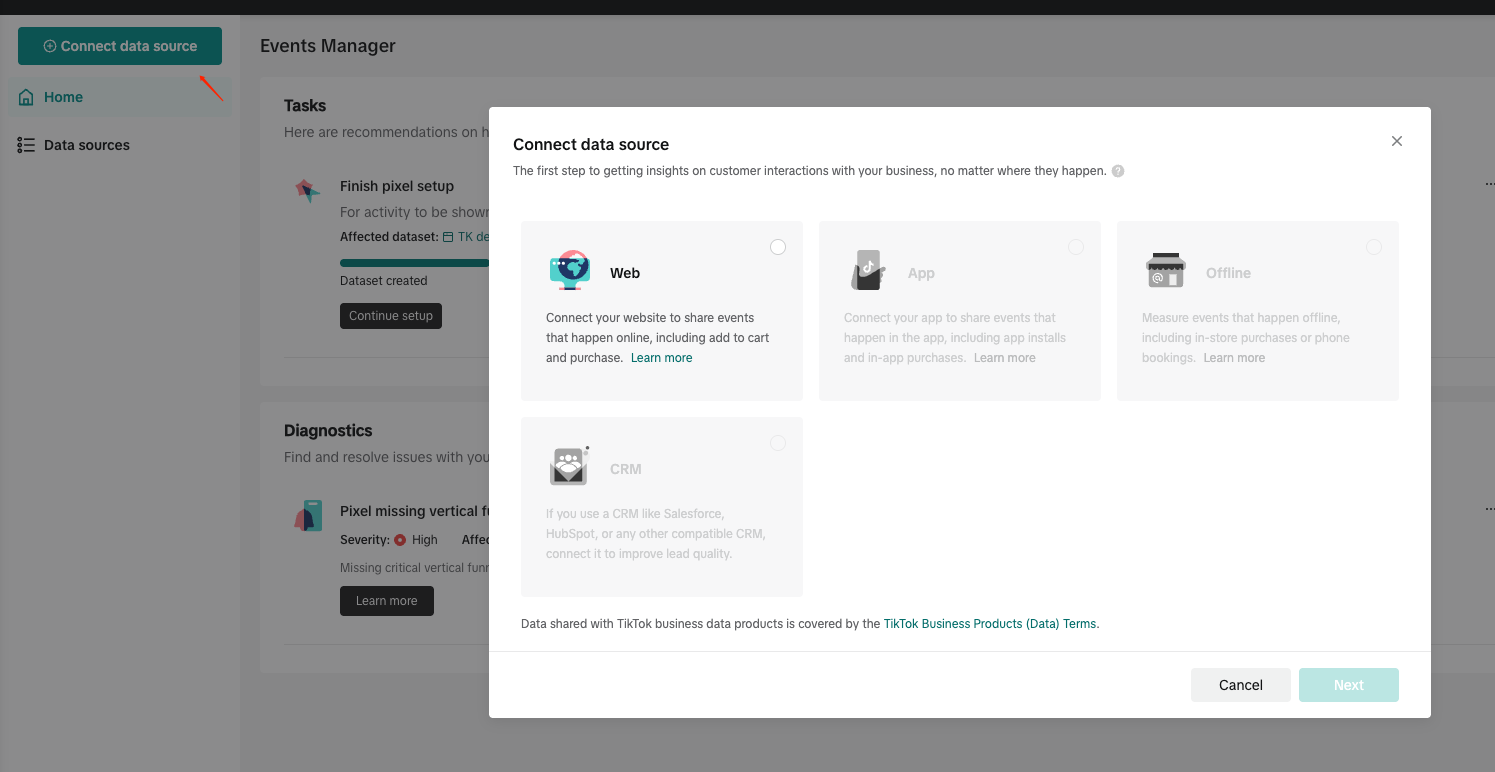
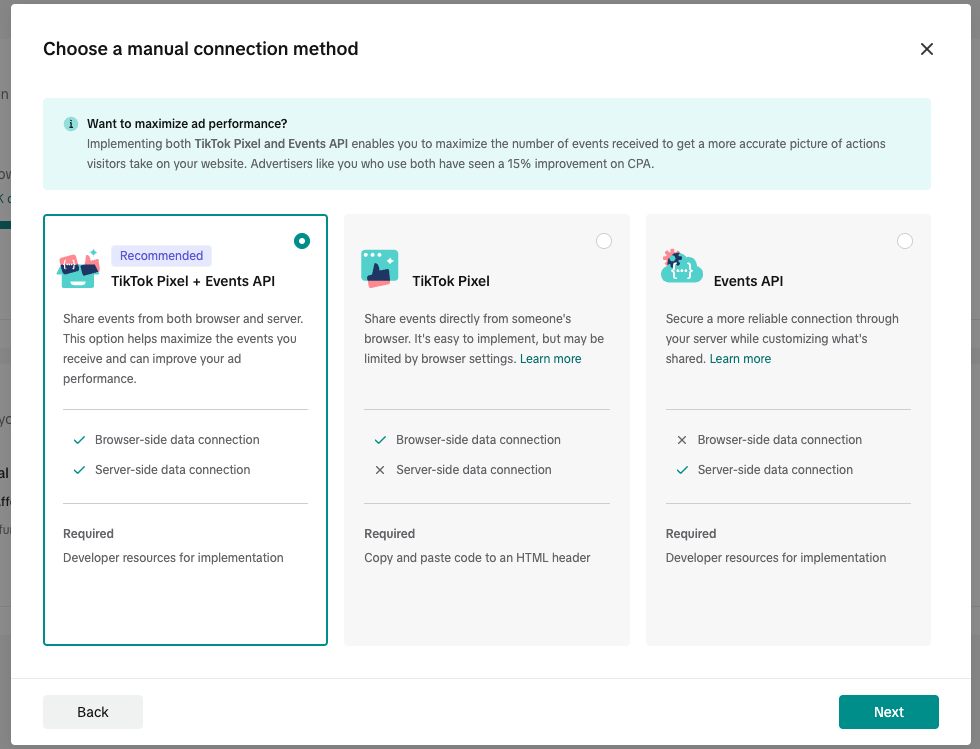
Connect your website / data source — Select Website as the source.
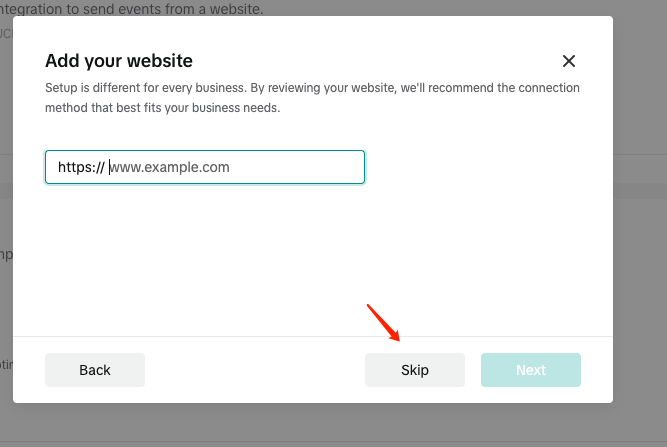
Add website URL — Enter your store URL (or use Skip when shown). Finish this step before the Manual setup step below.
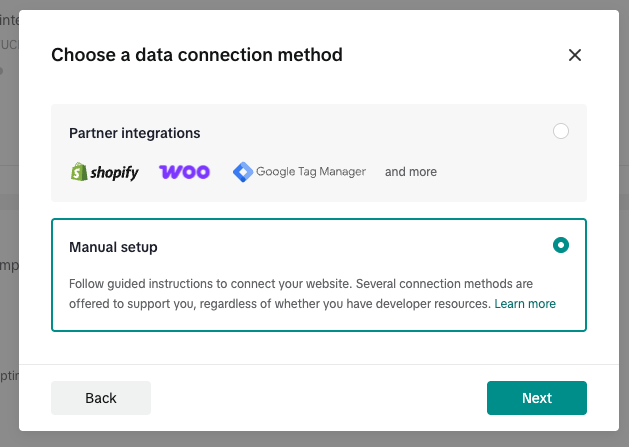
Manual setup — Then choose Manual setup so you can finish configuration in Zalify without pasting TikTok’s full snippet into your theme.
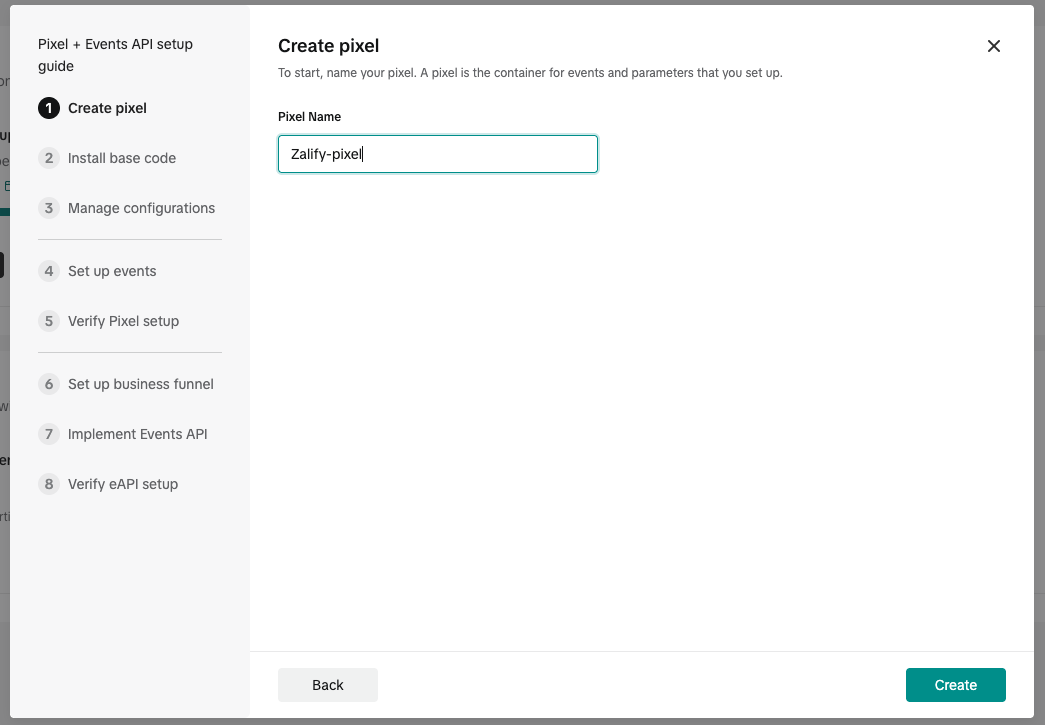
Pixel name — Enter a clear name (e.g. store name + TikTok), then continue.
Middle steps: keep clicking Next
After the screens above, the wizard may ask for industry, measurement options, etc. Unless you have a specific need, accept defaults or reasonable choices and keep clicking Next until you reach the page where you can see Pixel ID and Events API / Implement Events API.
Those intermediate screens are omitted here because Next is enough—Zalify handles firing and delivery; you do not need to install TikTok’s on-page snippet from this wizard.
Copy Pixel ID and generate Access Token
On the Pixel summary or settings screen:
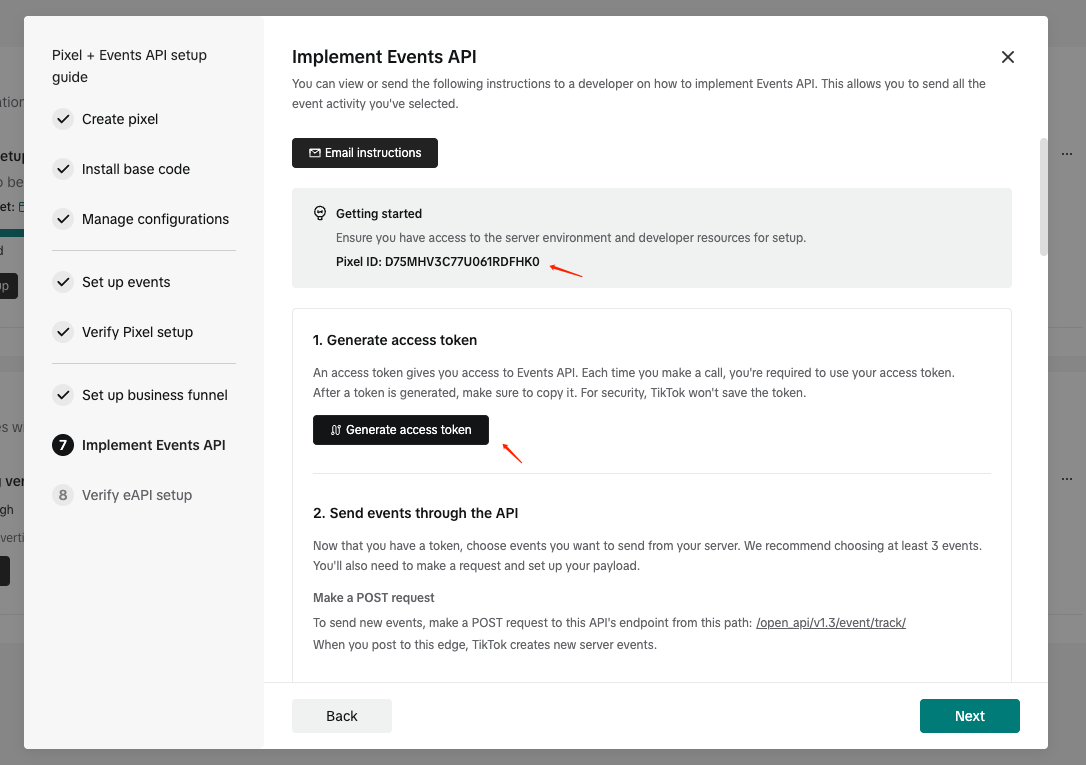
- Copy Pixel ID — Find the numeric Pixel ID and copy it.
- Generate Events API token — In the same area or under Settings, open Events API / Implement Events API, click Generate access token, and copy the token immediately. If TikTok shows it only once, store it safely; revoke and regenerate in Events Manager if you lose it.
Enter values in Zalify
- Open Pixel → Ad Pixels → TikTok Ads Pixel, then click Add Pixel (top right).
- Title — a friendly name.
- TikTok Pixel ID — paste your Pixel ID.
- TikTok Event API: Access Token — paste your Events API access token.
- Turn Enabled on, then click Save.
Use TikTok’s event testing tools or a test order to confirm events; reporting in TikTok can take time to update.