登录
登录
ANA像素追踪归因分析数据分析广告管理
Z1
AI 建站
全部产品
案例服务价格关于帮助
联系我们

像素

/

2 min read

Install the Zalify Pixel on Shopify

Get the Zalify Pixel live on your Shopify store — with automatic, zero-config consent handling.

On Shopify you don't paste the Pixel snippet by hand. The Zalify app ships the Pixel as a theme app embed — you turn it on in your theme, and it also wires into Shopify's consent system for you.

Before you begin

  • The Zalify app installed on your store. If you haven't done that yet, start with Getting Started with Zalify.
  • Store admin access so you can edit your theme.

Enable the Pixel app embed

1

Open your theme editor

In Shopify admin, go to Online Store → Themes, then click Customize on your live theme.

2

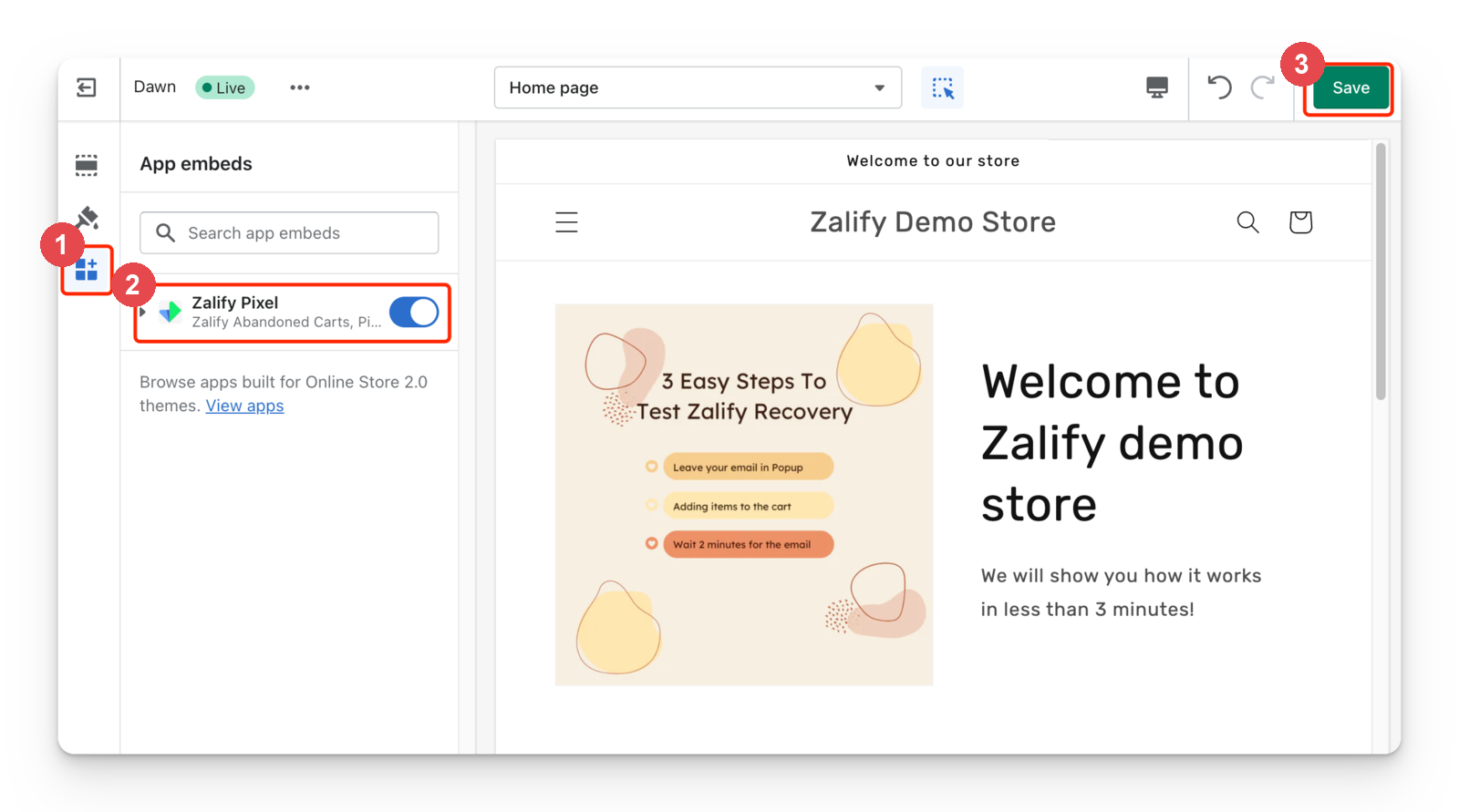
Open App embeds

In the theme editor sidebar, open the App embeds panel (the puzzle-piece icon).

3

Turn on the Zalify embed

Toggle the Zalify embed on. This loads the Pixel on every page of your storefront with your workspace already configured.

4

Save

Click Save. The Pixel is now live across your store.

For a deeper walkthrough of app embeds, see Install Zalify Pixels & Enable App Embeds and Enable the Zalify app embed.

If your store exposes Shopify's customer-privacy API (window.Shopify.customerPrivacy.analyticsProcessingAllowed), the Pixel wires into it with zero configuration. It:

  • reads the visitor's consent status at boot,
  • subscribes to Shopify's visitorConsentCollected events, and
  • ignores any manual consentStorageKey parameters.

Nothing to configure

On Shopify you don't need the manual consent options that other sites use. As long as your store's privacy/consent settings are on, the Pixel respects them out of the box. See Configure consent (GDPR/CCPA) if you want the details.

Verify it's working

Open your storefront with Preview Mode on and watch events fire — see Test your setup with Preview Mode.

Next steps

上一篇

Add the Zalify Pixel to your site

下一篇

Test your setup with Preview Mode