Zalifyピクセル
/
2 min read
Set Up Pinterest Tag and Conversions API (CAPI) with Zalify Pixel
Get your Pinterest Tag ID, ad account ID, and CAPI access token from Pinterest Ads, then configure Pinterest Pixel in Zalify.
Zalify supports the Pinterest Pinterest Tag (browser) together with the Conversions API (server-side) to measure visits, add-to-cart, checkout, purchase, and other conversions from your ads. In Pinterest Ads, copy your Pinterest Pixel ID (Tag ID), ad account ID (Account ID), and Conversions API access token, then paste them into Zalify.
Pinterest does not support multiple pixels per ad account in practice—you are typically limited to one Pinterest Tag per account.
1. Open Pinterest Ads and go to Conversions
Sign in and open:
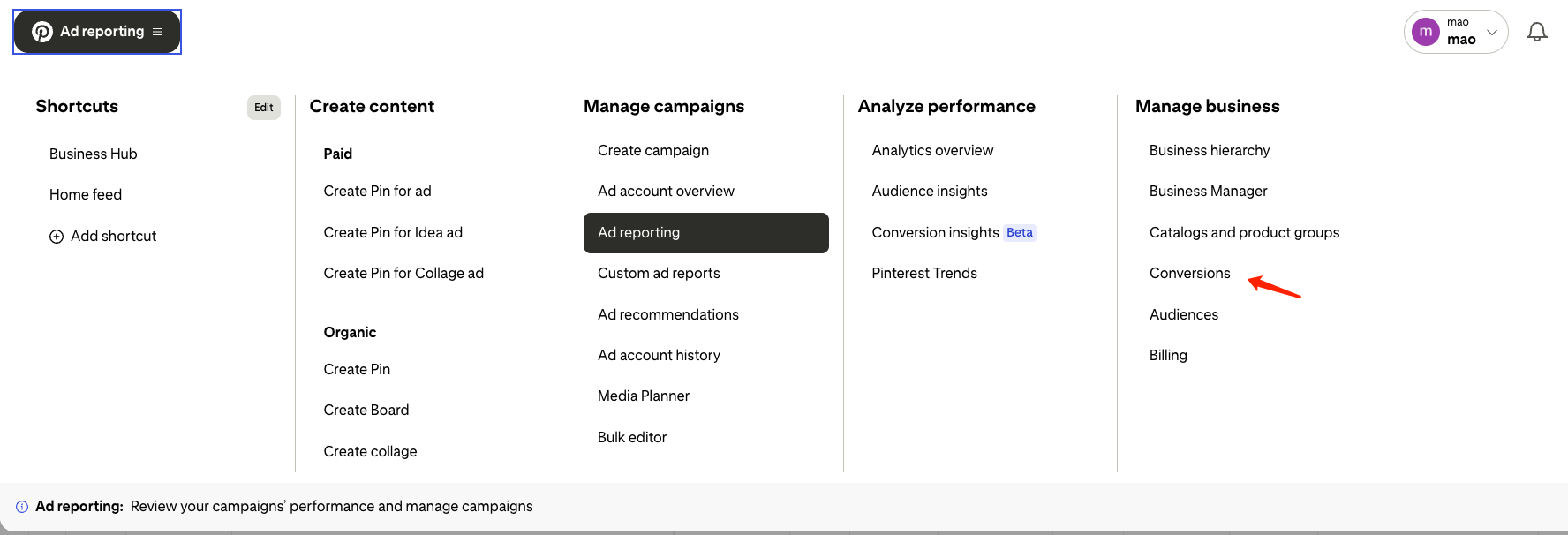
In the top navigation, open the menu next to Ad reporting, then under Manage business click Conversions.
2. Get your Pinterest Tag ID (Pixel ID)
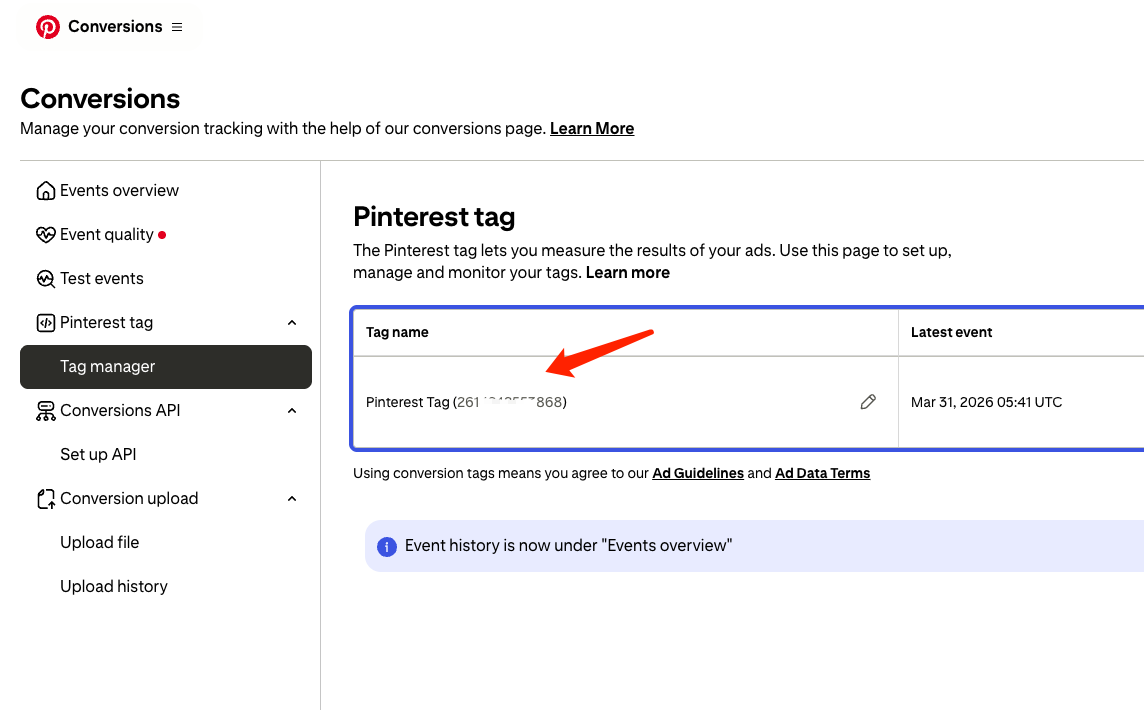
In the left sidebar, open Pinterest tag → Tag manager. Click your Pinterest Tag name in the table. The number in parentheses is your Tag ID (same value as the Pixel ID)—copy and save it.
If you have not created a tag yet, finish Pinterest’s base Pinterest Tag setup in Ads Manager first, then return here.
3. Get ad account ID and CAPI access token
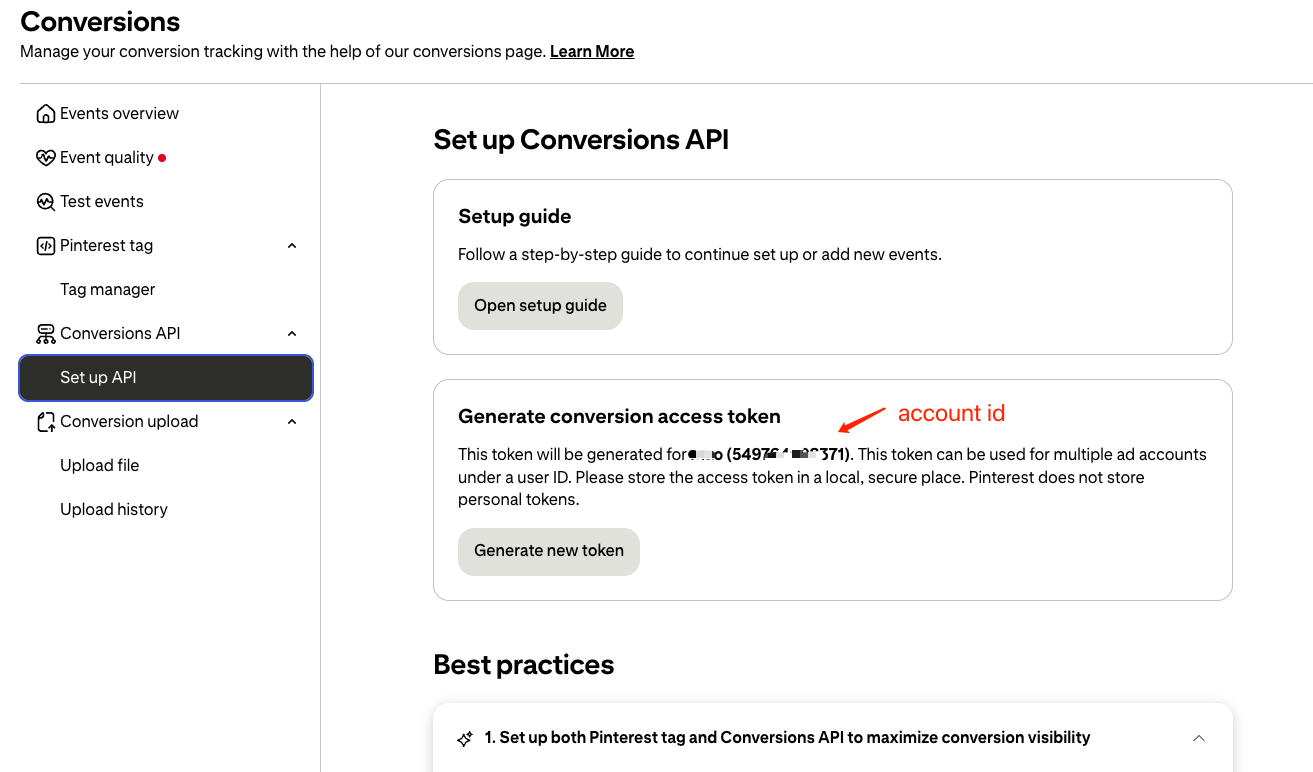
Under Conversions API, open Set up API. In Generate conversion access token:
- Note the ad account ID shown in parentheses (numeric Account ID).
- Click Generate new token, copy the access token right away, and store it securely. Pinterest does not keep your personal token for you; if you lose it, generate a new one in the same place.
4. Enter values in Zalify
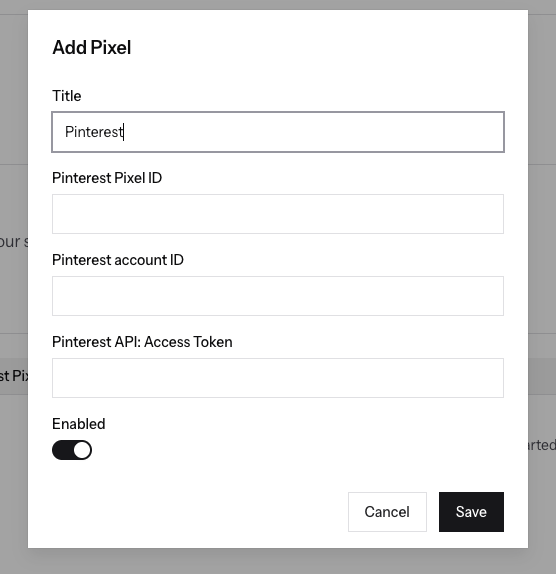
- Open Zalify Dashboard → Pixels, then add or edit your Pinterest Pixel.
- In the Add Pixel dialog, enter:
- Pinterest Pixel ID — your Tag ID.
- Pinterest account ID — your Account ID.
- Pinterest API: Access Token — your CAPI access token.
- Turn Enabled on and click Save.
Use Pinterest tools such as Test events to verify delivery. Reporting may take time to update.
For technical details, see Pinterest’s developer docs: Conversions and Track conversions in the API.