Zalifyピクセル
/
3 min read
Set Up X (Twitter) Pixel
Copy your X Pixel ID and each conversion event Action ID from Events Manager, then paste them into Zalify to track your Shopify store.
To configure the X (Twitter) Pixel in Zalify, you only need two kinds of values:
- X Pixel ID — from the website pixel you create in X.
- Action ID for each event — in X Events Manager, every saved conversion event shows
ID: xxxxxunder its name. Copy each ID into the matching Zalify fields: View content, Add to cart, Begin checkout, and Purchase.
You do not need to paste X’s JavaScript into your Shopify theme. Install Zalify Pixels, complete the form below, and save. For full context on pixels and Conversion API, see X’s help center: Conversion tracking for websites.
Prerequisites
- Access to X Ads and Tools → Events Manager (if you don’t see Tools, add a payment method to your ads account first).
- Zalify installed on your Shopify store with Zalify Pixels enabled (app embed).
Step 1: Get your X Pixel ID
- In X Ads, open Tools → Events Manager.
- Create or select your website pixel, then click View X Pixel / View Twitter pixel (wording may vary).
- On Install pixel code, open the Install with Pixel code tab. In Pixel code, find the base snippet and locate
twq('init','xxxx');— the value inside the quotes is your Pixel ID. Copy it.

Step 2: Create four events and copy each Action ID
Zalify’s four inputs map one-to-one with events in X. In Events Manager, create (or reuse) four events whose Type matches this table:
| Zalify field | Suggested event type in X |
|---|---|
| View content | View content |
| Add to cart | Add to cart |
| Begin checkout | Initiate checkout / Begin checkout (use the option that matches your UI) |
| Purchase | Purchase |
Follow X’s flow for Add events, Event details, and Save. Back on the event list, each row shows ID: o9xxx (example shape — yours may differ) under the event name. That string is the Action ID for that event. Paste it into the matching Zalify field.

Tip
- Keep types aligned: put Purchase IDs in Purchase, cart adds in Add to cart, and so on — mismatches break reporting and optimization.
- In X, use one active conversion event per type when possible; duplicate same-type events can split signal.
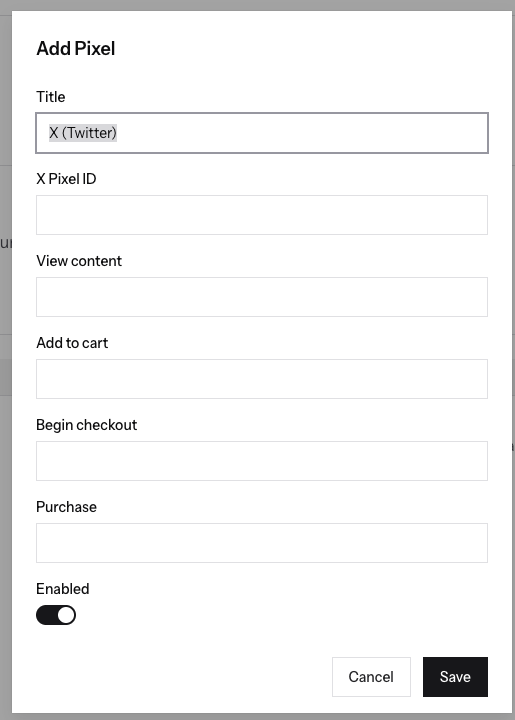
Step 3: Enter values in Zalify and save
- Open the Zalify dashboard → Pixels → add or edit X (Twitter) Pixel.
- Title — a friendly name (e.g.
X (Twitter)). - X Pixel ID — paste the Pixel ID from Step 1.
- View content / Add to cart / Begin checkout / Purchase — paste each Action ID from Step 2 (the short code after
ID:, not the event display name). - Turn Enabled on, then click Save.
Verify and troubleshoot
- Use the Twitter Pixel Helper Chrome extension on your storefront to confirm the pixel loads and events fire.
- Check Events Manager in X (data can be delayed).
- If another app or theme also loads an X/Twitter pixel, you may get duplicate counting — prefer a single implementation.
For more help, see Common issues and troubleshooting.