Zalifyピクセル
/
1 min read
Step 1: Install Pixels and turn on App Embeds
Step 1: Install Pixels and turn on App Embeds
After installing Zalify from the Shopify App Store, go to the Admin Portal of Zalify. The first thing is to install Zalify Pixels.
Zalify Pixels is a very lightweight code (only 4KB). Its role is to load GTM, automatically collect the purchase behavior data and events of visitors, and load pop-up campaigns (if the "Popup & Forms" feature is enabled).
- Enter Pixels-> Install Pixels and click Install Pixel

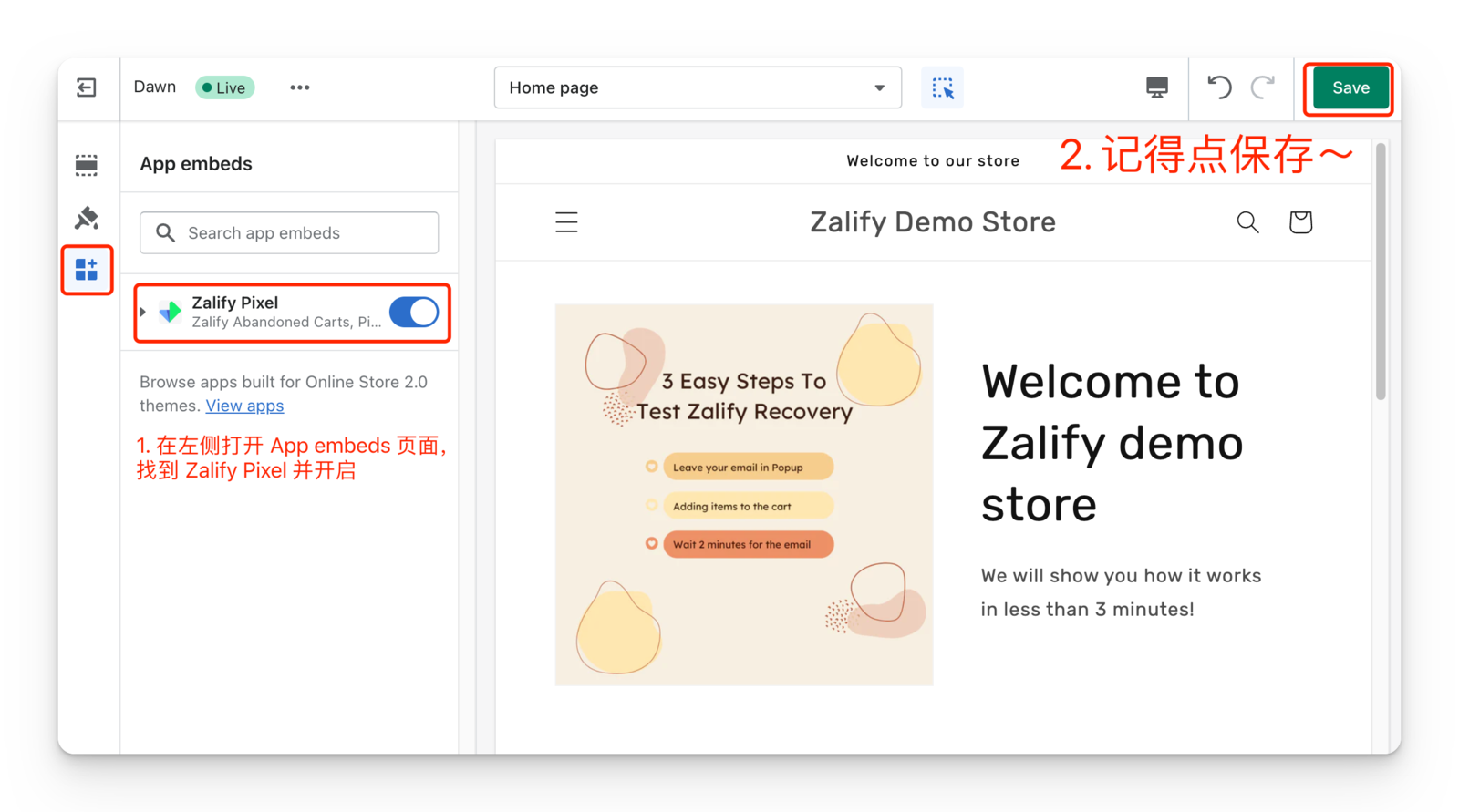
- Enable App Embeds and Save
- Back to the Admin Portal of Zalify to double check the successful installation
